How to Set Up Wix Payments the Right Way (So You Can Actually Get Paid)
Accepting payments on your website should be straightforward. With Wix, the tools are already built in, but problems usually happen when setup is rushed or skipped. This guide walks through proper configuration.
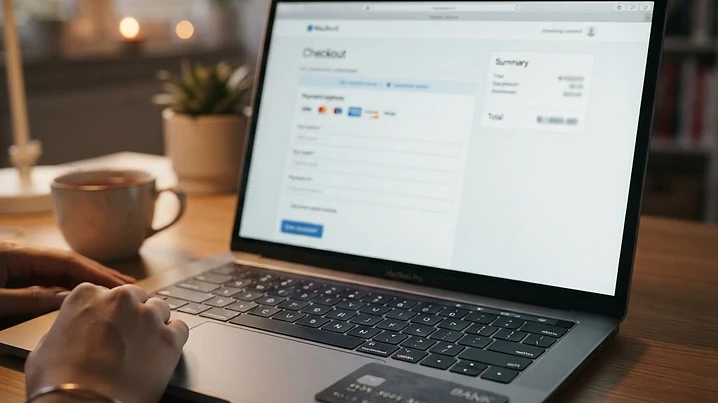
Accepting payments on your website should be straightforward. With Wix, the tools are already built in, but problems usually happen when setup is rushed or skipped.
Before You Start: What to Have Ready
Legal business name and address, bank account details for deposits, tax ID (SSN or EIN), access to your Wix site dashboard, a connected domain.
How Wix Payments Works
Wix Payments is Wix's native payment processor. Once enabled, it allows you to accept credit and debit cards, Apple Pay and Google Pay, and direct deposits into your bank account. Wix handles security, compliance, and transaction processing.
Step-by-Step Setup
Step 1: Navigate to your Wix site dashboard. Step 2: Open Settings. Step 3: Select "Accept Payments." Step 4: Start Wix Payments setup. Step 5: Enter business information (exactly as it appears on official records). Step 6: Add bank account details (double-check routing and account numbers). Step 7: Submit and wait for approval.
Connecting Payments to Your Site
Enabling Wix Payments alone does not activate checkout. You must connect payments to something customers can purchase: Products (Wix Stores), Services and bookings (Wix Bookings), Paid forms.
Test Everything Before Going Live
Submit a test order, complete checkout on mobile, confirm confirmation emails arrive, verify payouts appear in your Wix dashboard. Never assume payments are working just because setup was approved.
Common Issues: Wix Payments enabled but not connected to products or services, mismatched business information causing payouts on hold, unverified bank account details, checkout errors due to region or currency mismatch.
When Wix Payments is set up correctly, it runs quietly in the background and supports your business without friction. This guide exists so setup is done once and done right.